Installation and Setup
Installation and setup guide for the GitButler CLI tool.
How to install and setup the GitButler CLI.
Installing the but CLI
Ok, first thing is first, let's get our but CLI installed. Currently there are two ways to do this.
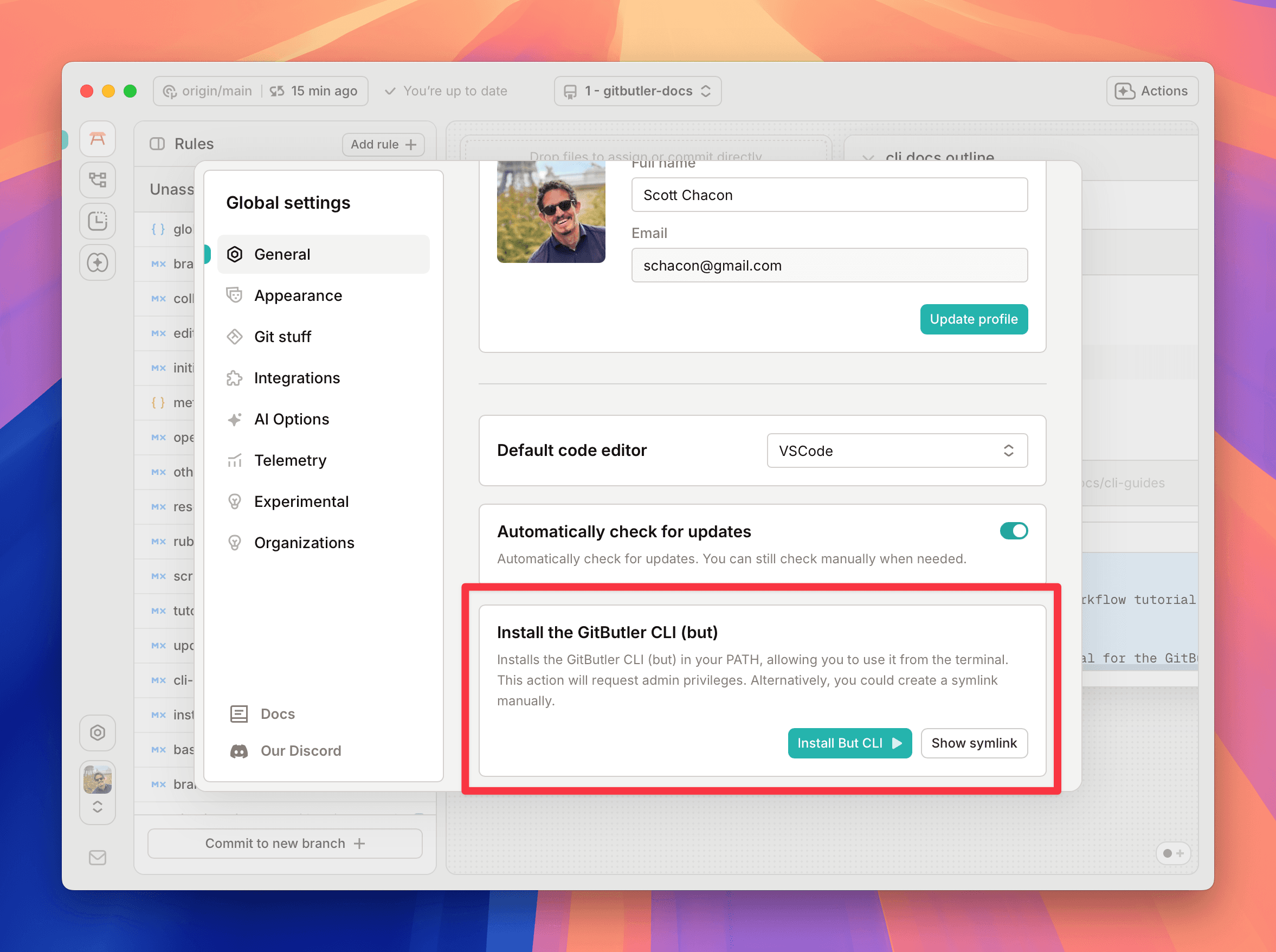
Via the Desktop Client
If you have the desktop client installed, you can go into your global settings and click on the "Install CLI" button in the "general" section.
Curl install
You can install the CLI by running the following command in your terminal:
Setup
There is no setup step. Run but in any Git repository.
With one branch applied, the repository stays a normal checkout of that branch, so plain Git commands keep working. When you apply a second branch, GitButler switches to its workspace branch so both branches can be in your folder at once.
To leave the workspace and go back to a single checked-out branch, run but teardown.
Last updated on